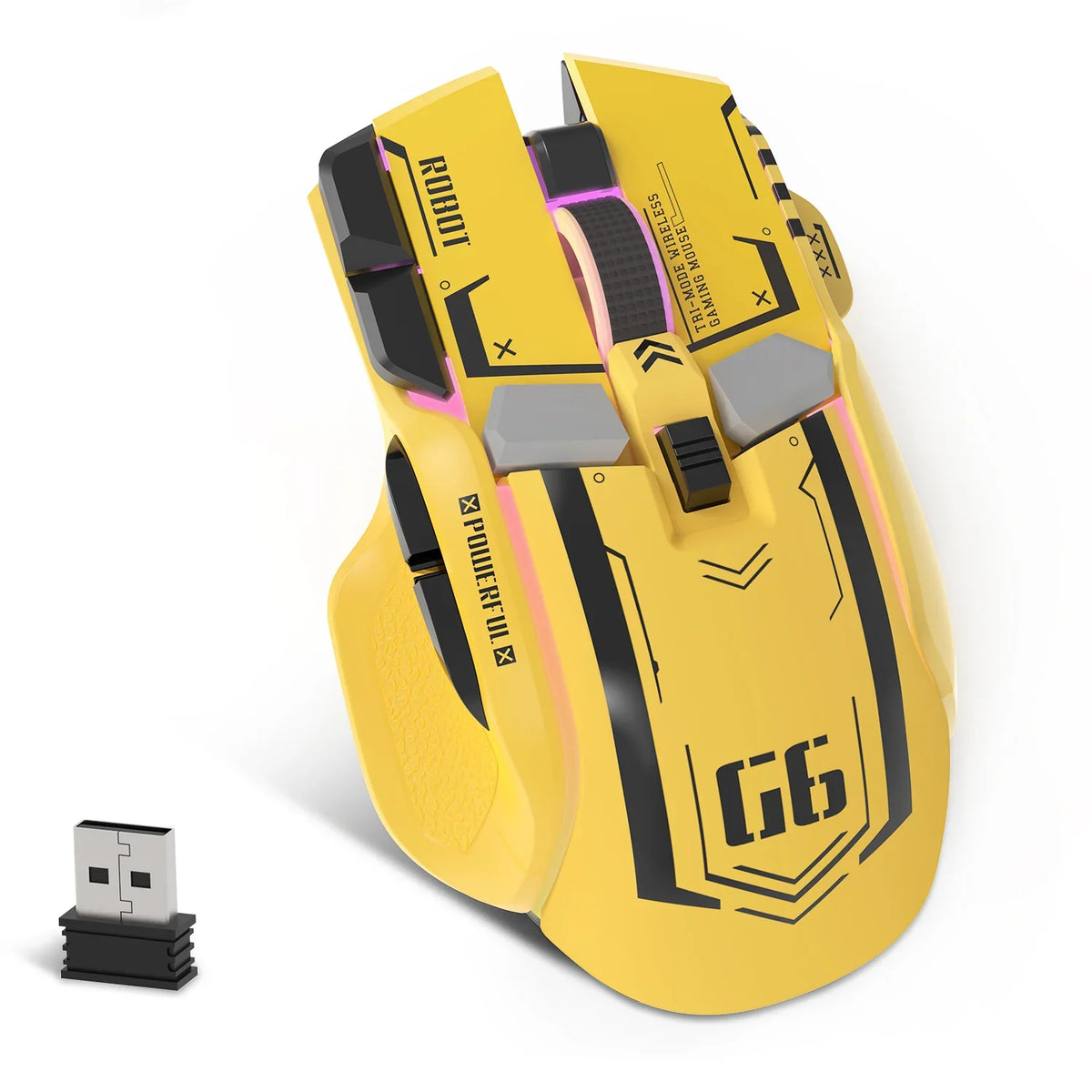
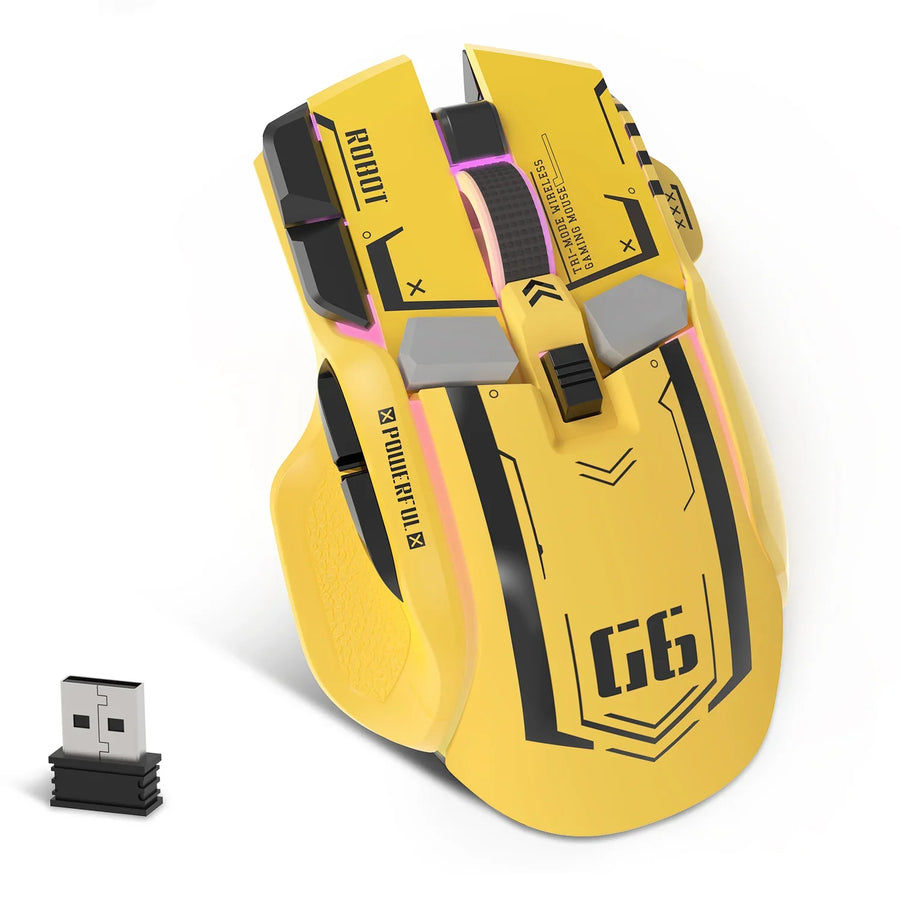
Start by writing down what every mouse button does right now. Then list the actions each game needs from those buttons. With that record in hand, you can build one clearly named profile per game, confirm it works inside that game, and keep a backup you can restore.
How far you can take gaming mouse profiles depends on your mouse, its software, your operating system, and the game. Some setups switch profiles automatically and some don't offer profiles at all. Check what your tool actually documents before you rely on a feature.
Set up one documented profile per game
The safest order is record first, edit second, and test last. Each step below leaves a trail, so you always know which change caused a problem.
- Record your baseline. Before you touch any setting, write down the current or default action for every button you plan to change.
- List each game's needs. For every game, note which actions you want on which buttons. Keep a separate list per game.
- Check what your setup supports. Confirm that your software offers programmable buttons and profiles, and find out how it switches between them.
- Create one named profile per game. Map only the actions on that game's list.
- Note the switching method. Write down whether the profile changes automatically or needs a manual step your software documents.
- Test in the game. Confirm each button does what you planned before you move on to the next profile.
- Save a known-good copy. Use your tool's documented backup or save option before you edit a profile that already works.
A simple notes file or spreadsheet is enough for the record. Give each row these fields: game, button, current action, intended action, profile name, and test result. If an assignment goes wrong later, that row tells you exactly what to put back.
Check software and game support before choosing a switching method
Confirm three things before you create anything: what your mouse software can do, which operating systems it supports, and what the game's own control settings allow. A mouse being sold as a "gaming" mouse doesn't tell you it has programmable buttons or per-game profiles. Look for those features in the software or its manual.
If you own one of our mice, start at our driver download page to find the software and user manual for your model. Then check that manual for profile and button-mapping options.

Third-party remapping tools are another route, but each one has its own limits. X-Mouse Button Control (XMBC) is one documented example. XMBC's listed Windows support covers Windows 10 and 11, and the same page describes application- and window-specific profiles. Those details apply to XMBC only. They don't mean it works with a particular mouse or replaces the software made for your device.
Last, open the game's control settings. Note the in-game key or action each mouse button should trigger, so you know exactly what result to look for when you test.
Create a distinct, clearly named mapping for each game
Build each profile from that game's action list, and give it a name you can't mix up with the others.
- Name the profile after the game. Add a role or setup detail if you keep more than one profile for a game, such as "Game Title, Healer." Don't depend on color or icon alone to tell profiles apart.
- Link the profile to the game when your tool allows it. In XMBC, the guide's profile creation and naming steps cover picking a running application or executable or window for a profile and giving it a custom display name. Menu labels in your installed version may differ from the guide, and other software uses its own terms.
- Map only the recorded actions. Assign the buttons from that game's list and leave the rest alone. A smaller change is easier to test and undo.
- Keep the baseline untouched. Leave your default profile unchanged so you preserve a working configuration.
There's no single correct layout. The right assignments depend on the game and how you play. If you want one button to change what other inputs do, our guide to side buttons as modifiers walks through that approach.
Choose a switching method the software documents
Use whichever switching method your software actually documents, and nothing more. According to XMBC documentation, its profiles activate automatically by default when the mouse moves over the designated application, window, or region. That behavior belongs to XMBC, so never assume another utility will switch profiles automatically.
If your software documents only manual selection, that selector becomes part of your routine. Write down how you switch, such as the menu, button, or shortcut your manual describes, next to each profile name in your record. Then you'll know what to do every time you change games.
Either way, a switching method isn't confirmed until you see the right profile become active as you move between your games. The next section covers that check.
Test each profile in its intended game
Test inside the actual game, one profile and one button at a time. Log each result in your record.
- Confirm the active profile first. In XMBC, red profile text marks the active profile. Other tools show the active profile in their own ways, so check your manual for the indicator.
- Press one mapped button at a time. Check that the expected in-game action happens, then mark pass or fail next to the game, profile name, and button.
- Switch to the next game. Confirm that a different profile becomes active and that its buttons trigger that game's actions, not the previous game's.
- Narrow down a failure. If the profile is active but the action is wrong, check the mapping and the game's control settings. If the profile didn't change, the switching step is the problem.
- Rule out the hardware. If a button seems dead in every profile, run it through our Mouse Button Test Tool to confirm the click registers. A pass there only shows the button works. It doesn't show that your game profile switched.
Troubleshoot switching issues and recover working profiles
If a profile failed to switch, first verify your software's documented switching procedure before altering any mappings. When an active profile has incorrect button assignments or unsaved edits, restore a known-good copy before making further changes. The steps below follow XMBC's guide; for other software, use only the recovery path its own documentation describes.

- Check which profile is active. Make sure you're looking at the profile you mean to fix, not a working profile for another game.
- Restore a saved copy if you have one. The XMBC guide documents exporting and importing profiles for applications and windows, along with saving and loading whole settings. These are software files on your PC, not storage on the mouse itself. Import or load the last version that passed your test.
- Reset a layer only to go back to defaults. XMBC can reset all controls on the selected layer to default. This wipes your custom assignments on that layer. It does not bring back an earlier custom mapping, so use it only when defaults are what you want.
- Rebuild from your record if no backup exists. Re-enter the assignments row by row from your baseline and action list, then test again.
- Save a fresh known-good copy. Once the profile passes in its game, export or save it before your next change.
FAQs
Do I need my mouse maker's software, or can I use a third-party remapper?
Either can work, depending on what each one supports. Your mouse's own software and manual are the place to confirm its button and profile options. A third-party tool like XMBC lists its own Windows support, but that doesn't prove it works with any particular mouse. Test the buttons you need before you commit.
Will my gaming mouse profiles carry over to another computer?
That depends on what your configuration tool supports. In XMBC, the documented option is exporting and importing profile files within the software interface. For hardware-level portability or other utilities, check the manual for your specific mouse.
Should every game use the same button layout?
No layout fits every game. Some players keep similar actions, such as a push-to-talk or reload key, on the same button across games so there's less to remember. Whatever you choose, record it per game so the differences are written down.
What if my mouse software has no profile feature?
You can still keep a baseline record and change mappings by hand between games, as long as your software lets you remap buttons. Another option is a documented third-party tool that supports your operating system. Test it with your mouse before you rely on it.