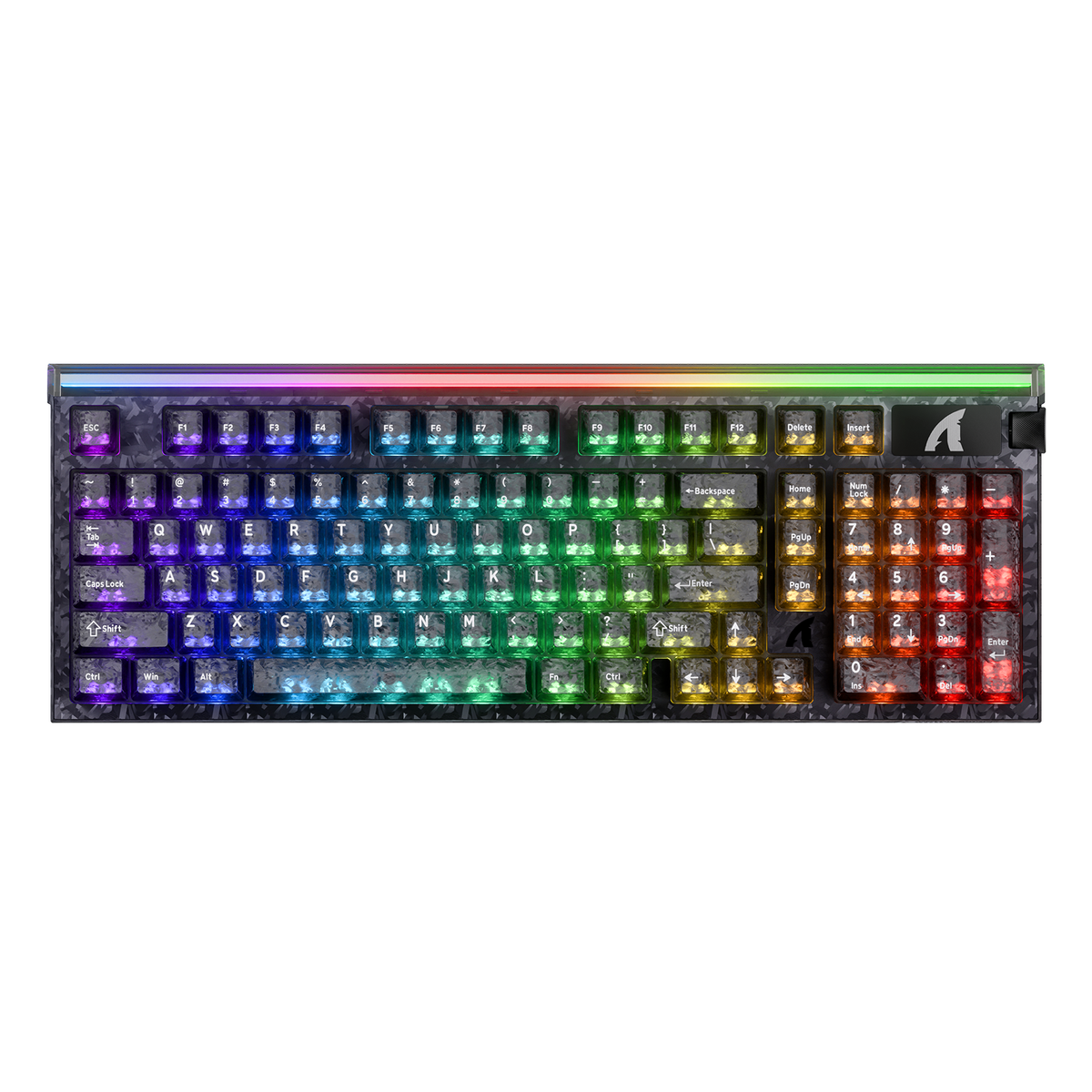
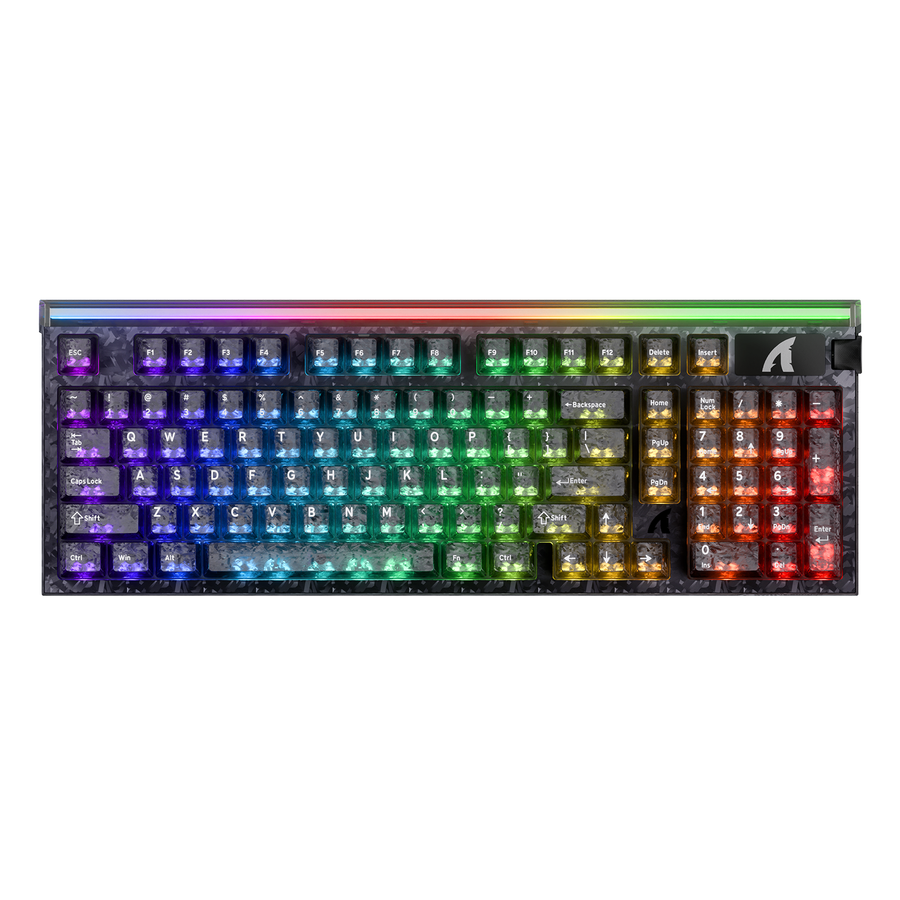
A stable Rapid Trigger setup does not come from copying someone else's numbers. It comes from a conservative baseline, one changed variable at a time, and a real test in the exact game or typing task where the key will be used. Rapid Trigger keyboard settings that feel great in a two-second test can still cause missed inputs or accidental presses once you're in a real match or typing a long message, so the method below treats every key group separately and keeps a change only when it survives that real test.

Start with a Conservative Per-Key Tuning Workflow
The fastest reliable path to a stable setting is a short loop you repeat for each key group, not a single universal number.
- Connect the keyboard, open its configuration software, and confirm it is recognized before touching anything.
- Save or write down the current profile so you can return to a known working state if a change goes wrong.
- Pick one key group, such as WASD, a modifier, or a block of typing keys. Do not retune the whole board at once.
- Set a conservative starting point for that group. If you don't know the software's numeric scale, think in relative terms: more responsive, balanced, or stability-first.
- Change actuation distance first, then Rapid Trigger release behavior, so you always know which control caused a new result.
- Test the exact action you care about, then keep the change only if intentional presses stay reliable and accidental ones don't appear.
Keep a simple worksheet as you go: key group, starting state, the one thing you changed, the scenario you tested, whether intentional inputs worked, whether accidental inputs appeared, and your keep-or-revert decision. This turns tuning into a record you can repeat instead of guesswork you have to redo. For a broader walkthrough of getting a keyboard match-ready, our stable keyboard calibration guide covers the setup steps before you start adjusting individual keys.
Actuation Distance and Rapid Trigger Control Different Moments
Actuation distance decides where a key press registers. Rapid Trigger decides how the key resets when you let go. Treating them as one setting is the most common reason tuning feels confusing.
A Hall Effect or other depth-sensing switch can track how far down a key travels, not just whether it's pressed. That lets the keyboard register a press at an adjustable point along that travel instead of only at the bottom. Rapid Trigger uses this same depth-sensing ability to reset the key as soon as it moves upward, even slightly, rather than waiting for it to return all the way to the top. As one technical explainer on the topic puts it, Rapid Trigger works by using depth-sensing switches to reset almost the moment a key is released, which is why repeated taps and quick direction changes can feel more responsive than on a fixed-reset switch.

This is exactly why the tuning order in the previous section matters: change actuation distance first, confirm the new registration point feels right, then adjust Rapid Trigger separately. Changing both together makes it hard to tell whether an accidental input came from where the press registered or from how quickly the key reset. Rapid Trigger is also a distinct feature from things like Snap Tap or multi-action key layers; those change what a key does, not when it registers or resets.
Actuation Registration vs Rapid Trigger Reset
Conceptual diagram only: actuation distance determines when a press registers; Rapid Trigger changes release/reset behavior. Exact software values and behavior vary by keyboard model.
View chart data
| Category | Key travel path |
|---|---|
| Key moves down | 0.0 |
| Actuation point | 1.0 |
| Key moves up | 1.0 |
| Rapid Trigger reset | 0.0 |
Choose a Stability-First Starting Point by Key Role
Not every key should use the same balance of responsiveness and stability. WASD benefits from quick resets; typing keys usually don't.
Movement keys get pressed and released constantly during strafing and counter-strafing, so a more responsive starting point is worth testing there, as long as stops and starts stay intentional. Utility and modifier keys sit in a different spot: a stray brush of the hand or a shift in finger position can trigger them, so a more balanced or stability-first bias protects against accidental mode changes. Alphanumeric typing keys should almost always start stability-first, because a mistyped character or a duplicated letter is more disruptive than a slightly slower reset.
| Key role | Conservative starting bias | Move when you see this symptom |
|---|---|---|
| WASD / movement | Responsive test | Movement starts or stops without your input |
| Utility and modifiers | Balanced to stability-first | Mode changes or actions fire from light contact |
| Frequently tapped action keys | Balanced | Repeats occur when you didn't tap twice |
| Alphanumeric / typing keys | Stability-first | Unwanted characters or repeated letters appear |
Treat any role's setting as too aggressive once you can't complete that role's normal action without an unintended activation, release, or repeat. When that happens, move that key group one step toward stability and retest before touching anything else.
Test One Change in the Game and in Normal Typing
A setting isn't stable until it passes the actual task you'll use it for, not just a quick tap in the software.
- Press and release the key in isolation. Confirm the intended event fires exactly once.
- Repeat the tap at the pace you'd actually use it in a match or while typing. Note pass or fail.
- Run the real movement transitions you rely on, like switching from W to S or A to D, without changing any other setting.
- Type a short, representative passage that includes punctuation and modifier keys if you're validating a mixed-use or typing profile.
- Review the result for both problems: inputs that didn't register when you meant them to, and inputs that appeared when you didn't press anything.
Do this testing outside a ranked or high-stakes match first, using a repeatable movement drill or a short typing sample you can reuse for every change. Keep the setting only when the exact scenario you tested passes; otherwise go back one step. Our pre-match keyboard checks walkthrough covers a similar verification pass before competitive play if you want a second reference point.
Troubleshoot Accidental Key Presses in Priority Order
When Rapid Trigger causes accidental inputs, the fix depends on which symptom you're seeing, not a blanket move toward less sensitivity everywhere.
- Accidental press from light contact: move that key toward a less-sensitive actuation setting first, then repeat the same deliberate-press test.
- Unwanted movement or action after release: make one controlled Rapid Trigger adjustment toward greater stability, then retest the exact release or transition that caused the problem.
- Mistypes or repeated characters: validate the typing profile on its own instead of weakening the gaming profile across every key.
- Missed intentional input after a change: confirm you tested the right scenario. If the test is correct, move the related control one step toward responsiveness and retest the same action. If the input is still missed, revert to the last known-good setting before seeking model-specific support.
If a key keeps producing unintended or missed inputs after you've returned it to your last known-good baseline, stop treating it as a sensitivity choice. At that point, check the model's support or driver resources instead of continuing to retune the same key.
Keep Separate Competitive-Gaming and Typing Profiles
Separate profiles make sense once a setting that works for movement starts causing mistypes or unwanted modifier behavior elsewhere.
Use a competitive-gaming profile when your priority is responsive movement and fast repeated inputs. Use a typing profile when clean characters, predictable modifiers, and steady releases matter more than the fastest possible reset. Before relying on either one, confirm how your specific keyboard's driver, web interface, or onboard memory actually saves and recalls settings; this varies by model, and having onboard memory does not by itself mean the keyboard switches profiles automatically between games.
A short validation sequence works well here: create or duplicate a profile, tune only the key groups that need to change, save it, then switch to or recall it. Finish by testing one real gaming action and one typing sample to confirm the profile actually loaded. If you need model-specific interface help, our keyboard support guides and keyboard driver downloads cover setup and firmware for further calibration.
Keep profiles separate whenever the same setting passes a movement test but fails typing, or creates unwanted modifier and utility-key behavior. That single fit check is enough to decide whether one profile is sufficient or whether you need two.
FAQ
What Is the Difference Between Actuation Distance and Rapid Trigger?
Actuation distance controls where a key press registers as you push it down. Rapid Trigger controls how quickly the key resets when you let go, reacting to even a small upward movement instead of waiting for a full release. If a key feels early, late, or generally off, test actuation distance first; if it feels unstable specifically around quick taps or transitions, test Rapid Trigger next.
How Do I Know if My Rapid Trigger Sensitivity Is Too High?
Watch for unwanted movement, unintended releases, repeated characters, or mistypes during the exact game or typing task you use that key for. If you see any of these, make one adjustment toward less sensitivity on the specific control involved, then retest that same action before changing anything else.
Can I Use Different Rapid Trigger Settings for Different Games?
Yes, when your keyboard's software supports separate profiles or reliable save-and-recall behavior. After switching profiles, validate one movement action and one typing or menu action on your specific model to confirm the settings actually loaded, since driver behavior differs between keyboards.
Should Rapid Trigger Be Enabled on Every Key?
Not necessarily. It's most useful where fast release behavior helps the task, like movement or repeated action keys. For modifiers, utility keys, and typing keys, prioritizing stability usually matters more than getting the fastest possible reset on every single key.