When you're comparing the best MMO mouse for a MOBA setup, start with the problem you want to solve—not the longest spec list. Prioritize consistent mouse control, reachable commands, comfortable positioning, and dependable configuration; add side buttons or keyboard features only when they address a specific need. For one player, that may mean an MMO-style mouse for item and ward access. For another, it may simply mean a better-fitting mouse and a familiar keyboard layout.

The best MMO mouse for MOBA play is therefore a conditional choice, not a universal category winner. Use the checks below to decide whether your bottleneck is command access, comfort, desk space, or software complexity before spending on extra features.
Start With Input Priorities, Not Maximum Specs
A practical MOBA setup should solve four problems in order: control consistency, reachable commands, comfort, and only then optional specifications. If you can't name the input or comfort issue an upgrade will fix, a simpler setup is usually the lower-risk purchase.
First, identify the friction you notice during a normal League of Legends or Dota 2 session:

- Control consistency: Does the mouse feel predictable at your usual sensitivity and connection mode?
- Reachable commands: Are abilities, items, wards, pings, or control groups awkward to access with your current binds?
- Comfort: Do the mouse shape, keyboard position, desk space, and cable routing make you change your grip or reach?
- Optional specifications: Would a particular sensor control, remapping feature, or adjustable actuation option solve a specific use case?
Treat the fourth category as a verification step, not a performance promise. The exact model page or manual should confirm the feature, software support, connection options, and profile behavior. A sensor or polling specification can describe a device, but it does not by itself prove better results in a game.
Choosing the Best MMO Mouse for MOBA Ability Inputs
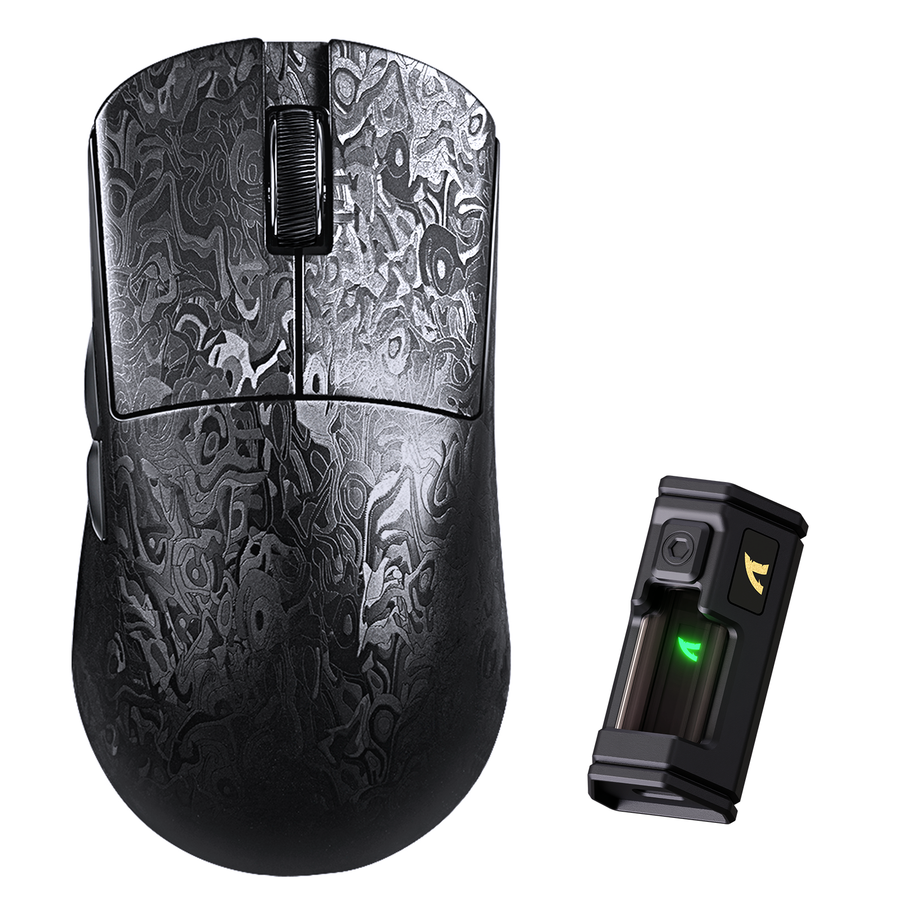
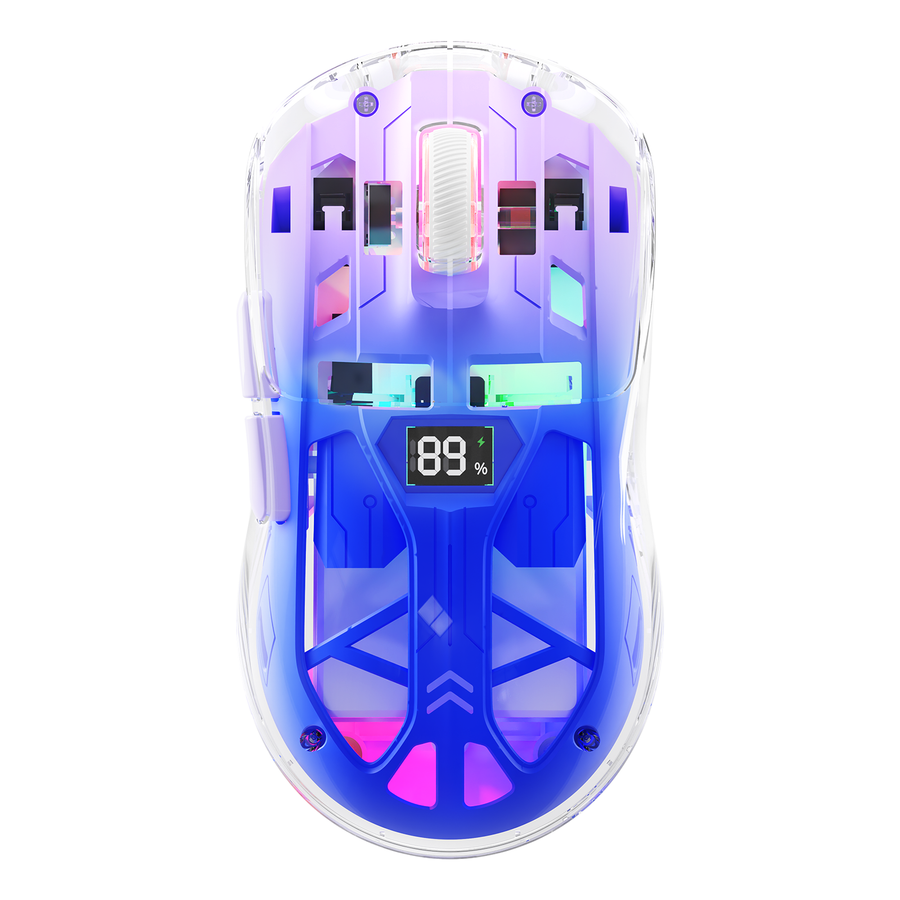
Choose an MMO-style mouse when extra reachable controls solve a recurring command-access problem. If your current keyboard binds already feel natural, prioritize shape, predictable control, and comfort instead of buying a mouse with more buttons simply because the category suggests it.
Side-Button Layout for Abilities and Items
Build a small mapping test before comparing button counts. List the commands you use frequently, remove anything that's already easy to reach on the keyboard, and identify the remaining actions that cause awkward reaches or interruptions.
Check the mouse against this list:
- Can your thumb reach the intended buttons without shifting your grip?
- Are the buttons spaced well enough to distinguish them during play?
- Could the layout cause accidental presses during movement or camera control?
- Does using a side button make the command easier, or merely move the same confusion somewhere else?
- Can you identify the active profile before entering a serious match?
For example, a player who repeatedly struggles to reach item or ward commands may benefit from a few well-placed side buttons. A player who already uses those commands comfortably may gain little from a larger button array. The goal is usable access, not a button-count score.
For a deeper look at the design question, see this MOBA mouse design resource. Use it as an informational follow-up, not as proof that any particular layout is best.
Sensor Settings and Control Consistency
Compare mouse models using the settings that matter to your setup, rather than treating one headline specification as decisive. Confirm exact details on the official model page or manual; independent testing can help you understand how a specific device behaves, but it does not establish that every mouse in a category performs the same way. A balanced independent mouse review is useful for that model-level perspective.
| Check | What to Verify | Why It Matters for MOBA Play |
|---|---|---|
| Sensor evidence | Exact sensor information on the model page or manual | Confirms what you're actually comparing |
| Connection mode | Wired, wireless, receiver, or other supported modes | Helps you match the mouse to your desk and reliability needs |
| Polling options | Available settings and device or connection requirements | Prevents a headline number from becoming an unsupported benefit claim |
| Sensitivity controls | Adjustment method, stored settings, and software needs | Lets you reproduce your normal control setup |
| Software support | Operating-system support, profiles, and update path | Reduces configuration surprises |
| Buyer relevance | Whether the feature changes your current setup | Keeps unused specifications from driving the purchase |
Use repeatable settings during a short practice session. If the cursor feels predictable and your normal movement remains comfortable, that's more useful than assuming a higher specification will change your play.
Grip, Weight, and Repeated Click Comfort
Shape, weight, surface, cable or wireless arrangement, and click reach work together. A mouse that looks attractive on a spec sheet may still force a grip change or make repeated ability and movement inputs feel awkward.
Run a short normal-play test rather than judging the mouse only in a menu. Notice whether your thumb presses unintended buttons, whether your fingers shift to reach clicks, and whether the cable or receiver placement interferes with movement. If the problem continues across ordinary sessions, treat the shape or layout as a poor fit instead of trying to adapt indefinitely.
Keyboard Controls: Rapid Trigger, Macros, and Layout
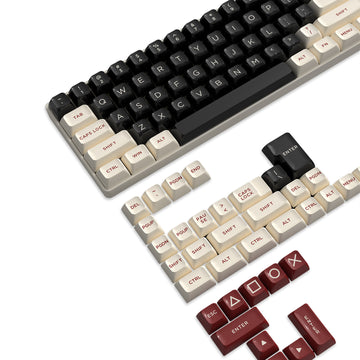
Choose a keyboard around dependable key access, familiar feel, and desk fit first. Rapid trigger is an optional, model-dependent feature for a specific technique or cross-game use case; remapping and multi-action macros are separate decisions that require software and a check of current policies.
| Feature | Possible MOBA Use | Added Complexity | Verify Before Buying |
|---|---|---|---|
| Conventional actuation | Familiar movement, ability, and modifier inputs | Usually lower | Key feel, layout, connection, and software needs |
| Rapid trigger | May suit a player who also has a specific cross-game or technique-related use case | Adjustable behavior and profile learning | Actuation controls, reset behavior, profiles, firmware, and software |
| One-to-one remapping | Can move an awkward command to a more reachable key | Requires profile discipline | Software support, saved profiles, and game compatibility |
| Multi-action macros | May automate several inputs, but introduce policy and reliability concerns | Highest | Current game, software, and tournament rules before use |
Rapid Trigger as a Conditional Upgrade
Rapid trigger changes how a compatible keyboard detects key movement, but its value depends on the exact controls, the player's technique, and whether added sensitivity creates more input errors than it removes. Research and product discussions around Hall Effect keyboards often focus on movement-heavy FPS use; that context shouldn't be treated as a guaranteed League of Legends or Dota 2 advantage. See this Hall Effect keyboard tradeoff discussion for broader context.
Consider rapid trigger when you regularly play another genre where the feature has a clear role, or when you have a specific personal technique you can test. Before relying on it, verify the exact keyboard's actuation controls, reset behavior, profiles, firmware requirements, connection, and software. If you only play MOBAs and don't have a key-input problem, it's an optional expense rather than a default upgrade.
Macros, Key Remapping, and Game-Safe Use
One-to-one remapping isn't the same as multi-action automation. Because current game, peripheral-software, and tournament rules can differ and may change, don't assume a binding is permitted or prohibited without checking the applicable rules yourself.
Use this check before enabling a binding:
- Classify the binding: Is it one key moved to another key, or does one press trigger multiple actions?
- Verify current rules: Check the relevant game, software, and tournament policies before using automation.
- Label the profile: Name profiles clearly so a work, practice, or other-game configuration doesn't carry into ranked play.
- Test safely: Check for accidental activation and wrong-profile behavior before using the setup in a serious match.
If the policy is unclear, leave the automation disabled. A reliable, simple binding is preferable to a feature that creates account, tournament, or configuration uncertainty.
Keyboard Size, Key Feel, and Reach
Choose keyboard size by desk room and reach, not by format prestige. A compact layout can leave more room for the mouse, a tenkeyless layout can preserve familiar navigation while reducing footprint, and a larger layout may suit buyers who regularly use dedicated navigation or number-pad keys.
| Layout | Often Suits | Trade-Off to Check |
|---|---|---|
| Compact | Limited desks or players who want more mouse room | Missing keys may require layers, remapping, or extra reach |
| TKL | Players who want familiar movement and navigation without a number pad | Still needs enough desk depth and mouse clearance |
| Larger layout | Buyers who use dedicated navigation or number-pad keys | Can reduce mouse space and make desk placement more crowded |
Test key feel and sensitivity during normal play. The most adjustable keyboard isn't automatically the easiest to use; a familiar, predictable layout may reduce errors and configuration work.
Comfort and Desk Fit for Long Ranked Sessions
Long-session comfort depends on the relationship between mousepad room, keyboard position, reach, cable routing, and grip. Use the following as a personal setup check, not a medical assessment or a universal comfort guarantee.
Balance the Mousepad, Keyboard, and Wrist Position
Set up the mouse and keyboard together rather than optimizing each one in isolation. You should have enough room for ordinary mouse movement without pushing the keyboard into an awkward angle or placing your hands at the edge of the desk.
Use this desk-placement checklist:
- Leave enough mousepad room for your normal sensitivity and movement style.
- Place the keyboard where movement and ability keys are reachable without a constant shoulder or wrist adjustment.
- Route the cable, receiver, or wireless arrangement so it doesn't drag against the desk edge.
- Check that your mouse hand can move without repeatedly striking the keyboard or desk.
- Reassess the setup after a normal session, not just after five minutes of testing.
If repeated accidental presses, persistent discomfort, or insufficient movement room remain after reasonable adjustment, the setup isn't a good fit. Don't treat endurance as a requirement to prove that a peripheral works.
Separate Comfort Problems From Skill Problems
Change one variable at a time after a hardware upgrade. Test grip first, then sensitivity, key binds, posture, and software profiles rather than changing everything and guessing which adjustment helped.
A short controlled comparison can reveal whether the issue is the hardware or the transition. If the same problem appears with different sensitivity settings and familiar binds, revisit the shape, reach, or desk placement. For additional reading, this ergonomic skill binding article can serve as a navigation resource, but its concepts shouldn't be treated as medical advice.
Match the Setup to Your Play Style and Budget
The simplest buying path is to name the bottleneck first, then buy only the feature that addresses it. MOBA-heavy players often have more reason to test mouse-side utility than rapid trigger; hybrid players may consider rapid trigger for a separate cross-game use case; uncertain buyers should start with the simpler setup.
- Name the bottleneck. Write down whether the problem is command access, cursor control, fatigue, desk space, or configuration friction. If there isn't a clear problem, don't pay for a feature list you may not use.
- Select the mouse. Test side-button reach only for frequent, awkward commands. Then verify the exact model's shape, dimensions, weight, sensor, connection, software, and profile support in current official documentation.
- Select the keyboard. Prioritize layout, movement-key reach, key feel, and reliable configuration. Add rapid trigger only for a specific, verified use case, not because it's marketed as a universal improvement.
- Verify software and policy fit. Confirm operating-system support, firmware and profile behavior, and the current rules for any automation. Software availability and setup reliability are part of the total value of a configurable peripheral; don't assume every feature will work the same way across systems. Check software and driver information before depending on a configuration.
- Check purchase terms. Before placing the order, verify the current price, shipping, return window, warranty, compatibility, and whether a bundle or separate components better match your needs. We offer gaming bundles as one browsing path, but a bundle shouldn't be treated as automatically cheaper, more compatible, or better suited without checking its current terms and included models.
Attack Shark can be one value-focused place to browse while you compare these requirements. We can't use an unverified product description to establish a specific sensor, polling rate, actuation value, price, warranty, or performance outcome, so check the live model page before purchase. The right next step is to identify your bottleneck, verify the exact facts and policies, and choose the least complicated setup that solves it.
FAQs
These questions cover narrower buying and setup decisions that can change the answer for a particular player.
Are MMO Mice Useful for League of Legends and Dota 2?
They can be useful when several frequent commands are genuinely awkward to reach on the keyboard, especially items, wards, pings, or control groups. If your current binds already feel natural, an MMO-style mouse may add button management without solving a real problem, so test the command list before buying.
How Many Mouse Buttons Does a MOBA Player Actually Need?
There is no useful category-wide number. Count frequent commands, remove the ones you already reach comfortably on the keyboard, and test the remaining buttons for thumb reach and accidental presses. The smallest layout that handles those commands consistently is a better target than filling every available position.
Should You Use Macros in League of Legends or Dota 2?
Start by distinguishing one-to-one remapping from a multi-action macro. Check current game, peripheral-software, and tournament rules before enabling automation; if the rule or account risk is unclear, avoid it in ranked or tournament contexts and use simple, clearly labeled bindings instead.
What Should You Check Before Buying a Rapid-Trigger Keyboard for Dota 2?
Verify the actuation and reset controls, software profiles, firmware process, layout, connection, key feel, and operating-system support. Also check current game and tournament policies if the keyboard software offers automation. Confirm return and warranty terms before buying because feature fit isn't enough if the keyboard is difficult to configure or unsuitable for your desk.