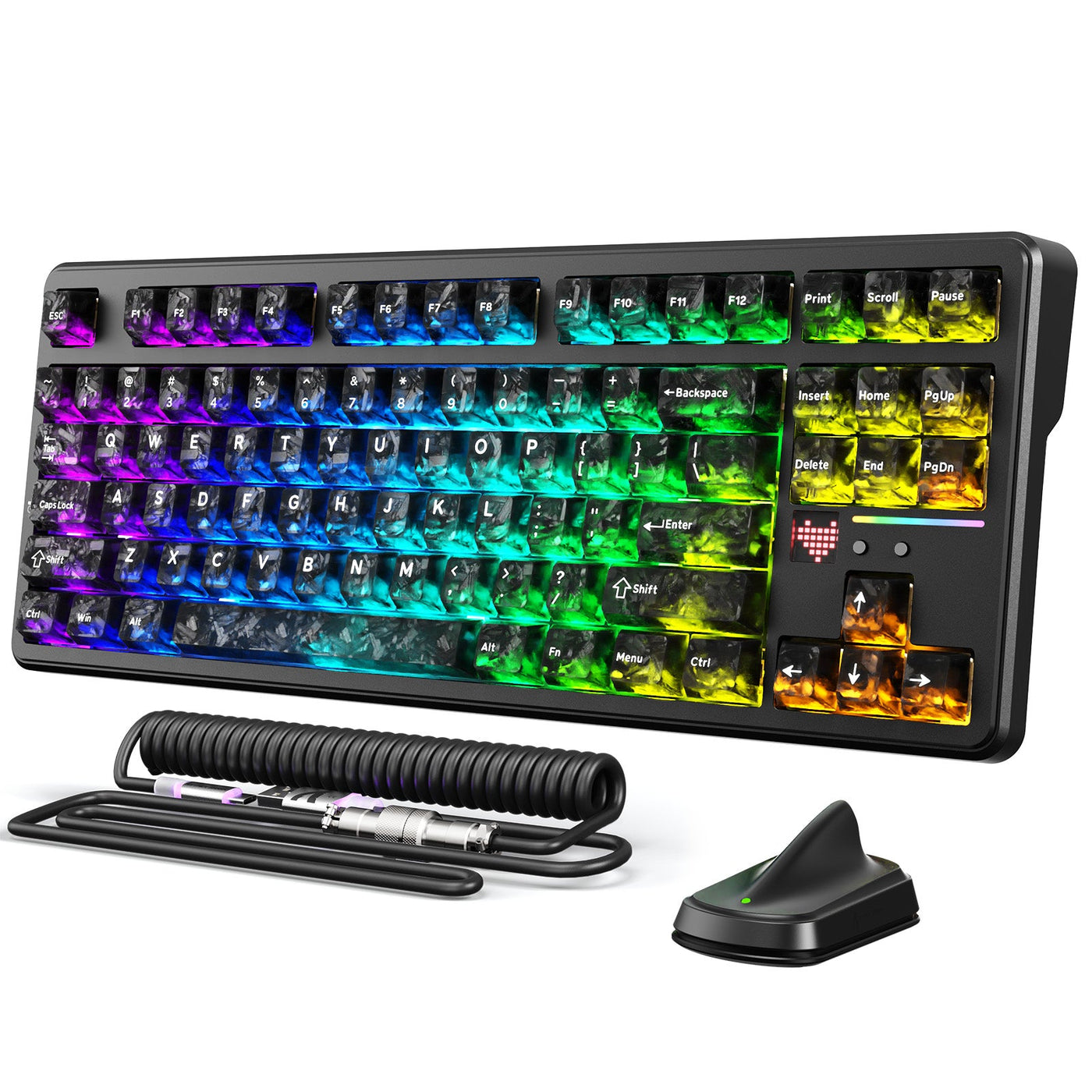
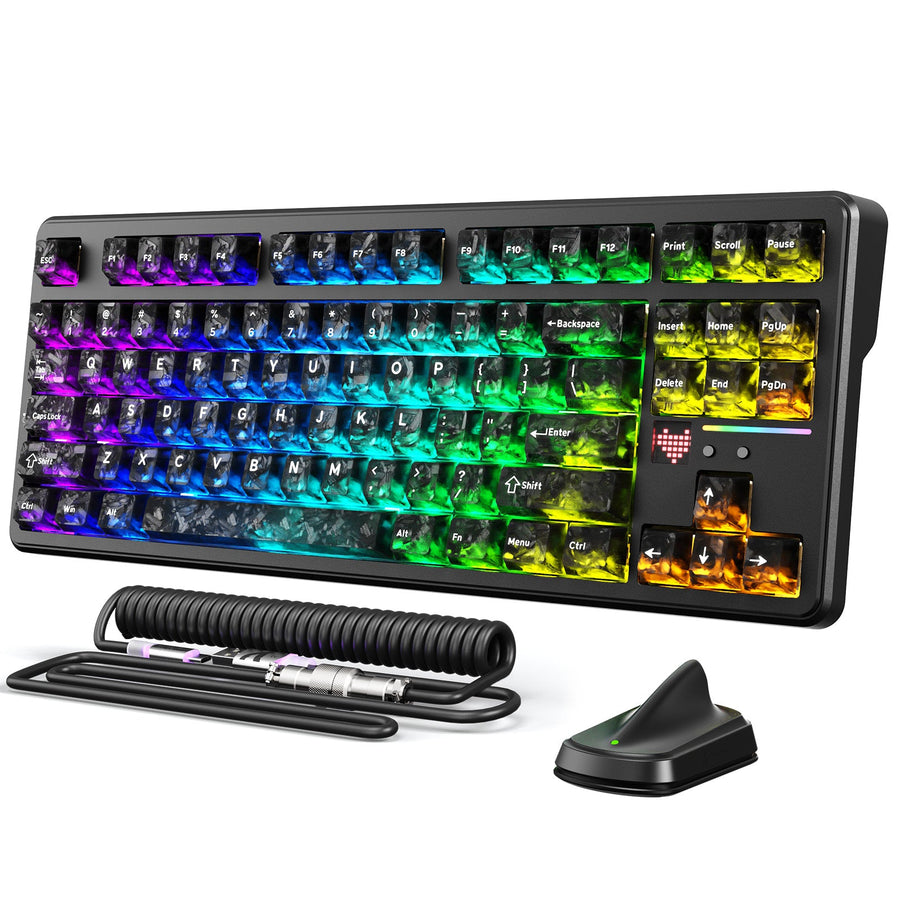
Wireless keyboard battery life is not one number. Runtime moves with how much lighting stays on, how often the keyboard transmits data, which connection mode you use, whether sleep actually kicks in, and how many hours you type each day. If you want to know what drains a wireless keyboard battery fastest, start with continuous RGB lighting and sustained high update or polling behavior. Those two settings are the first things worth testing when charging feels too frequent. Connection activity, sleep effectiveness, and your own daily active hours then decide how much of that battery gets spent working instead of waiting. The comparison and worksheet below let you turn those variables into a real charging plan for your own keyboard.

Which Wireless Keyboard Features Drain Battery Fastest?
Lighting and sustained high update behavior are the two settings worth testing first, but the exact penalty depends on your specific keyboard and how it is configured. Connection activity, sleep behavior, and total active hours matter too, though their impact is more implementation-dependent.
| Feature or usage factor | Qualitative impact | When it becomes a priority | First adjustment |
|---|---|---|---|
| Continuous RGB or lighting | High when lighting stays on at high brightness for long sessions; Low when lighting stays off | Long sessions with bright, continuous effects | Lower brightness or disable effects during non-gaming hours |
| High update or polling activity | High when wireless mode runs at a high rate continuously | The highest rate stays active outside the moments that need it | Reserve the highest rate for active gaming; let it drop otherwise |
| Connection behavior (mode, listening pattern) | Medium when the radio remains active during idle periods | Radio activity continues while you are not typing | Check the keyboard's connection settings against your usage pattern |
| Sleep or suspend effectiveness | Medium when idle periods do not trigger a lower-power state | The observed timeout does not match your breaks | Verify the observed timeout instead of assuming it works |
| Active-use hours per day | Compounding because long use multiplies the other settings | Daily sessions are longer than your baseline conditions | Log real hours before estimating a charging interval |
These labels are qualitative planning guidance, not measured drain percentages. Low means the setting is not a first test under the stated condition, while High means it deserves earlier testing. No label is a universal result for every keyboard or configuration. Use the table to choose a test order, not as a fixed battery-life forecast.
Why Connection Mode and Idle Behavior Change Runtime
The same battery capacity produces different charging intervals because the radio's listening pattern, transmission rate, and idle behavior all change independently. Each one affects power draw in a different way.
Connection Mode Is a Radio Behavior, Not Just a Label
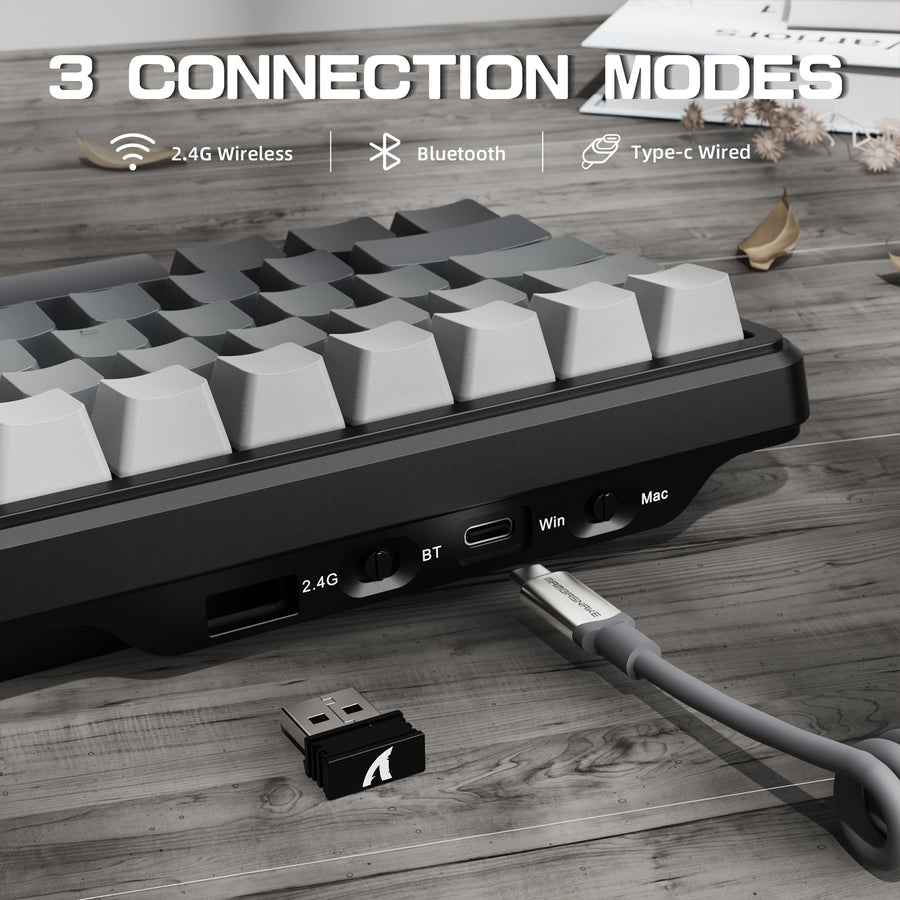
For a Bluetooth LE keyboard, the connection interval controls how often the radio can service the connection, and peripheral latency can let the device skip connection events without listening, which can save power during inactivity. That means two wireless modes can behave very differently while you are not typing, even with identical hardware. Do not assume Bluetooth, 2.4GHz, or wired is universally the best choice for battery life without checking your specific model's documented behavior.
Polling and Activity Trade Responsiveness for Power
Sending data more often uses more power, so a keyboard running at a high update rate continuously will generally draw more than one that only ramps up during active play. Bluetooth engineering guidance notes that shorter connection intervals and higher update rates increase power consumption because data moves more frequently, while some implementations can skip connection events or switch rates dynamically to save power. A model's separate wired and wireless polling specifications describe a configuration difference, not a measured battery penalty.
Sleep Only Helps When Suspend Actually Happens
An idle keyboard does not automatically use less power. It only does when the device actually enters a suspend or sleep state. Technical documentation on the HID suspend event notes it can turn off LEDs, reduce keyboard scanning, or drop into a lower-power radio state when normal performance is no longer required. Before you estimate runtime, record your keyboard's actual connection mode, selected update or polling setting, and observed sleep timeout. Do not assume every idle hour behaves like a low-power hour.
Estimate Your Charging Interval With a Transparent Worksheet
You cannot estimate charging frequency from a spec sheet alone. You need your keyboard's documented baseline plus your own settings and hours, entered honestly, including any unknowns.
Fill in the Documented Baseline
- Record the model and its documented runtime figure exactly as qualified, including any condition like LEDs off.
- Note the listed battery capacity if the manufacturer supplies one.
- Record the connection mode and update or polling setting you actually use.
- Record the lighting state and brightness level.
- Log your active hours and idle hours per day.
- Note the sleep or suspend behavior you actually observe, not the one you assume.
- Add any measured drain you have tracked, or mark the field unknown if you have not tracked it.
If a field has no usable documented number, mark it unknown rather than borrowing a figure from another keyboard or model.
Turn the Fields Into a Charging Plan
Worked documented-condition calculation: Let the model baseline be B hours, where B is the manufacturer's runtime under its stated conditions. If your lighting and other settings match those conditions, the adjustment is 1.0, so the formula is B hours × 1.0 = B hours. The result is a B-hour documented-condition planning reference, not an RGB or mixed-use forecast. If any setting differs or remains unknown, output a test priority instead of a precise number.
If you have an observed charging interval from actual use, that number is more reliable than any spec. When several fields are unknown, pick the single largest suspected drain from the table above, usually lighting or update behavior, and test it first while keeping a charging cable within reach. That single change, tracked over a few days, gives you a realistic interval without inventing one.
Settings That Fit Gaming, Office Work, and Travel
The right first adjustment depends on how you actually use the keyboard, not a single universal setting. Gaming, office work, and travel each call for a different starting point.
Gaming: Protect Responsiveness, Then Trim Lighting
Keep the wireless update setting you actually need for competitive play, and record what RGB effect and brightness are active during those sessions. If charging is becoming inconvenient, reduce lighting or drop unnecessary continuous high-rate activity outside active matches before you consider abandoning wireless mode altogether.
Office Work: Make Idle Time Count
Moderate or no lighting is usually enough for typing-focused work, but the bigger lever is confirming that your keyboard actually enters sleep or suspend during breaks between tasks. An idle keyboard that never suspends can drain like an active one. Choose a connection and update setting that covers your typing needs without assuming one mode automatically wins on battery.
Travel: Prioritize Predictable Availability
Turn lighting off, use the lowest practical activity setting, and log your real daily hours rather than a best-case estimate. No advertised maximum guarantees a fixed trip duration, so carry the charging cable as your fallback whenever charging access on the road is uncertain. This is also where knowing how to improve a wireless mechanical keyboard's battery life pays off fastest, since travel conditions expose every setting you did not adjust.
Does Wired Mode Help, and What Charging Habits Should You Use?
Wired mode lets you keep working without depending on the wireless battery during that session, but it does not prove anything about long-term battery health. Treat it as an availability fallback, not a battery-saving strategy.
What Wired Mode Changes
When a keyboard supports USB-C wired operation, switching to a cable bypasses the wireless-runtime constraint for that session. Choosing wired mode for a specific session is about avoiding an interruption, not extending the battery's lifespan.
A Bounded Charging Routine
Charge before any session where an interruption would matter, confirm the charging indicator your model uses, and keep the cable accessible as a fallback. Check the model's manual for charging indicators and cable requirements before relying on wired fallback. Record the actual interval you observe between charges and feed it back into your worksheet; it will typically be more accurate than any documented maximum. For step-by-step pairing and setup help, see our guide on wireless keyboard setup.
When a Wireless Mechanical Keyboard Fits Your Routine
A wireless mechanical keyboard fits your routine when its documented battery condition, connection options, or polling configuration actually solve the problem you identified above. It is not a fit just because it looks capable on a spec sheet.
Choose by the Charging Problem You Actually Need to Solve
If you want a documented low-lighting reference point and a large listed battery for travel or long low-light sessions, our X87 ULTRA battery example lists up to 5,000 hours with LEDs off on its 10,000mAh battery, plus 2.4G, Bluetooth, and wired connectivity and up to 8,000Hz polling. Keep that LEDs-off condition attached; it is not an RGB-on forecast. If you are comparing wired and wireless polling for competitive play instead, our X68 PRO HE gaming option lists 8,000Hz wired versus 1,000Hz wireless polling alongside RGB backlighting, useful inputs for your own worksheet rather than a guaranteed runtime.
Know When Wireless Is Not the Simpler Fit
If you cannot reliably access charging, or you need fixed, uninterrupted availability without runtime planning, a wired setup remains the simpler path. We built our tri-mode and rapid-trigger options for readers who have already identified their setting priorities. Once you know whether lighting, polling, or connection behavior matters most to your routine, browse our wireless mechanical keyboards to match your specific scenario instead of picking on looks alone.
Start with continuous lighting and sustained high update activity, then record connection mode, rate, sleep timeout, and daily hours in the worksheet. Use the documented-condition result only when your settings match it; otherwise, test the highest-priority unknown. If interruptions matter and your keyboard supports wired use, keep the cable available as your fallback. Together, these steps turn wireless keyboard battery life into a plan based on your settings rather than a generic maximum.
FAQs
How Long Does a Wireless Gaming Keyboard Battery Last?
There is no single figure, because how long a wireless gaming keyboard battery lasts depends on lighting, update rate, connection mode, and daily hours. Use the model's documented condition, such as an LEDs-off maximum, as your starting point, then adjust down for RGB use and long sessions using the worksheet above.
Does RGB Really Shorten Wireless Keyboard Battery Life?
Continuous RGB lighting is one of the two highest-priority settings to test, but the exact penalty is model-specific and depends on brightness and effect. RGB battery life on a wireless keyboard is best measured by comparing your own runtime with lighting on versus off, rather than assuming a fixed universal cost.
Should I Leave My Wireless Keyboard Plugged in Overnight?
The available evidence does not support specific battery-health claims about a particular charging pattern. A supportable routine is to charge before sessions where an interruption matters, confirm the indicator your model uses, and check your keyboard's manual for its recommended charging behavior.
Does Switching to Wired Mode Save Battery?
Wired mode avoids relying on the wireless battery during that session, which is useful when you need reliable availability, but it is not evidence of a long-term battery-health benefit. Use it as a fallback for interruption-sensitive sessions rather than a charging strategy.