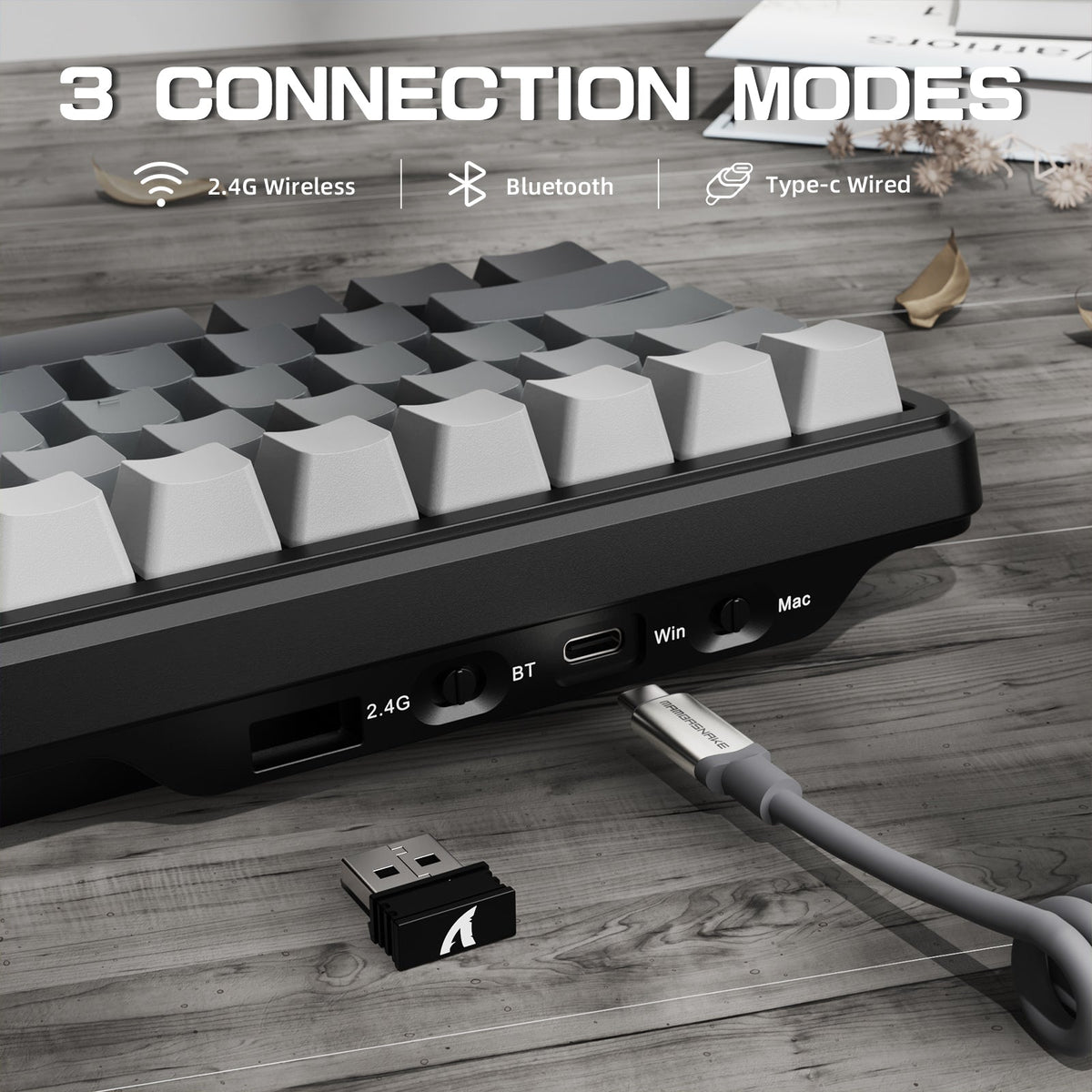
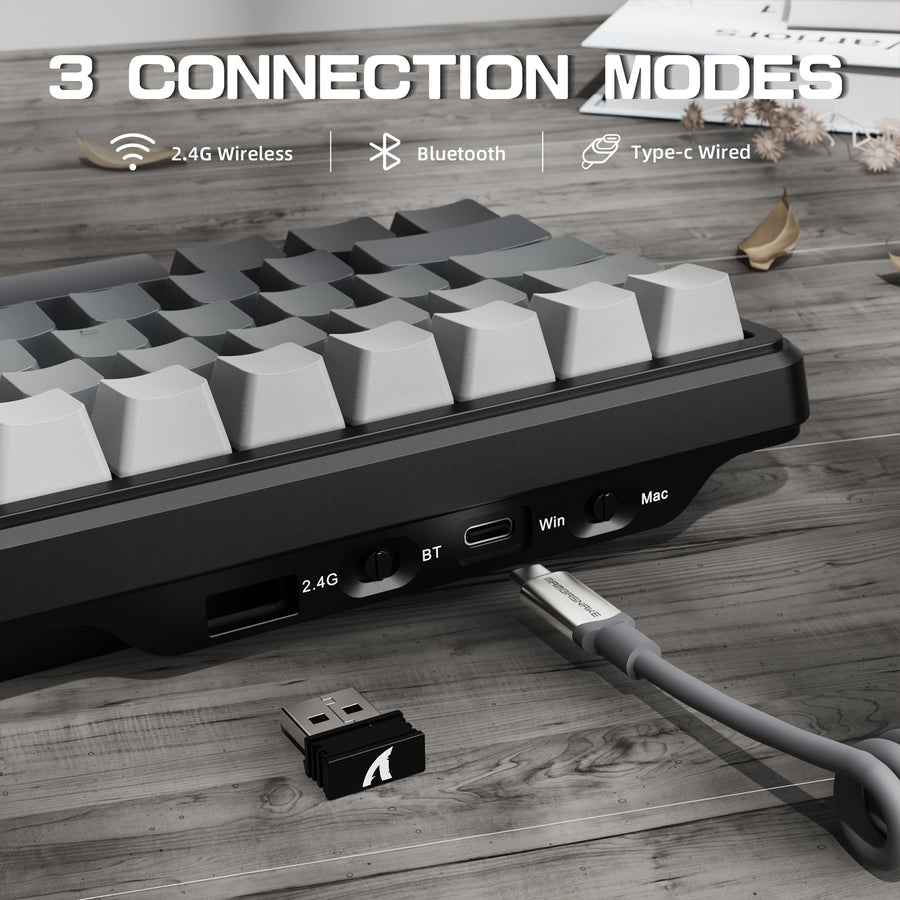
Start by looking at your two machines, not the keyboard specs sheet. Assign your gaming desktop to a receiver-based 2.4GHz connection once you confirm the exact model ships with that receiver and a free USB port. Assign your laptop to Bluetooth only if the laptop and the keyboard both document compatible pairing. Reach for tri-mode only when the maker's own documentation shows how you switch between hosts and confirms USB-C wired operation as a backup.

Map the Desktop and Laptop Before Choosing a Connection Mode
Your two hosts do not need identical connections. Match each machine to the path it already supports, then treat switching frequency and free ports as the deciding factors before you compare wireless gaming keyboards further.

For a Fixed Gaming Desktop, Start With the Receiver Path
2.4GHz is the sensible default for a desktop that never moves, but only once the exact model includes or documents the required receiver. Check that a USB port, or an adapter you already own, is free and within reach of the keyboard. If the port is on the back of a tower under your desk, that "confirmed" connection can still be inconvenient in daily use.
For the Laptop, Use Bluetooth Only When Support Is Documented
Bluetooth lets a supported laptop connect without giving up a USB port, which matters on machines with limited ports. That said, pairing behavior, saved-device limits, and operating system support are still exact-model questions. A keyboard's Bluetooth badge does not guarantee your specific laptop model or OS version is on its supported list.
For Frequent Switching, Require Proof of the Control
Tri-mode combines the wireless paths above with a wired connection on the candidate models covered later in this guide. That combination only helps if the manual explains how you actually pick a host, whether that's a physical switch, a key combination, or automatic detection. Buying tri-mode without checking that control means gambling on convenience you have not confirmed.
What 2.4GHz, Bluetooth, and Tri-Mode Change in a Two-Host Setup
Each mode changes what you must keep available and how you switch, not just how the keyboard connects. Use the table below to match a mode to your actual routine before treating any label as a final answer.
| Mode | Connection path and host requirement | Best two-host use | What the exact model must confirm |
|---|---|---|---|
| 2.4GHz | Dedicated USB receiver plus a free, reachable port | A desktop that stays put and rarely changes hosts | Receiver is included, and the port or adapter path fits your setup |
| Bluetooth | Built-in host Bluetooth radio and completed pairing | A laptop where you want to keep the USB port free | The exact keyboard and your laptop's OS both support the pairing |
| Tri-mode | 2.4GHz plus Bluetooth plus USB-C wired, combined | Frequent switching between desktop and laptop, or a wired backup | Documented switching control, and USB-C wired keyboard operation |
None of these labels prove latency, range, or battery performance by themselves. A wireless gaming keyboard with Bluetooth and 2.4GHz switching still needs its own manual to confirm how quickly and reliably you can move between the two hosts. If your routine rarely changes, a single confirmed mode is often simpler than chasing tri-mode for flexibility you will not use.
When Wired Fallback Is Worth Requiring
Require wired fallback only when losing wireless connectivity would actually interrupt your session, and only after the exact listing names USB-C data operation, not just charging.
USB-C Must Be a Data Connection, Not Just a Charging Port
A charging cable can recharge a keyboard's battery without the keyboard ever accepting keystrokes over that same cable. That distinction matters because many wireless keyboards include a charge-only USB-C port. Look for language that specifically names wired keyboard operation, USB data mode, or wired input support in the product listing or manual before counting on a cable as a backup.
Require Fallback Only When It Changes Your Routine
If a dead battery or an unavailable Bluetooth pairing would stop your gaming session, wired fallback belongs on your checklist. If that scenario would not affect you, skip the wired requirement and judge the keyboard on its documented 2.4GHz or Bluetooth path instead. Treat wired fallback as an added requirement you verify separately, not a bonus you assume comes bundled with any wireless keyboard.
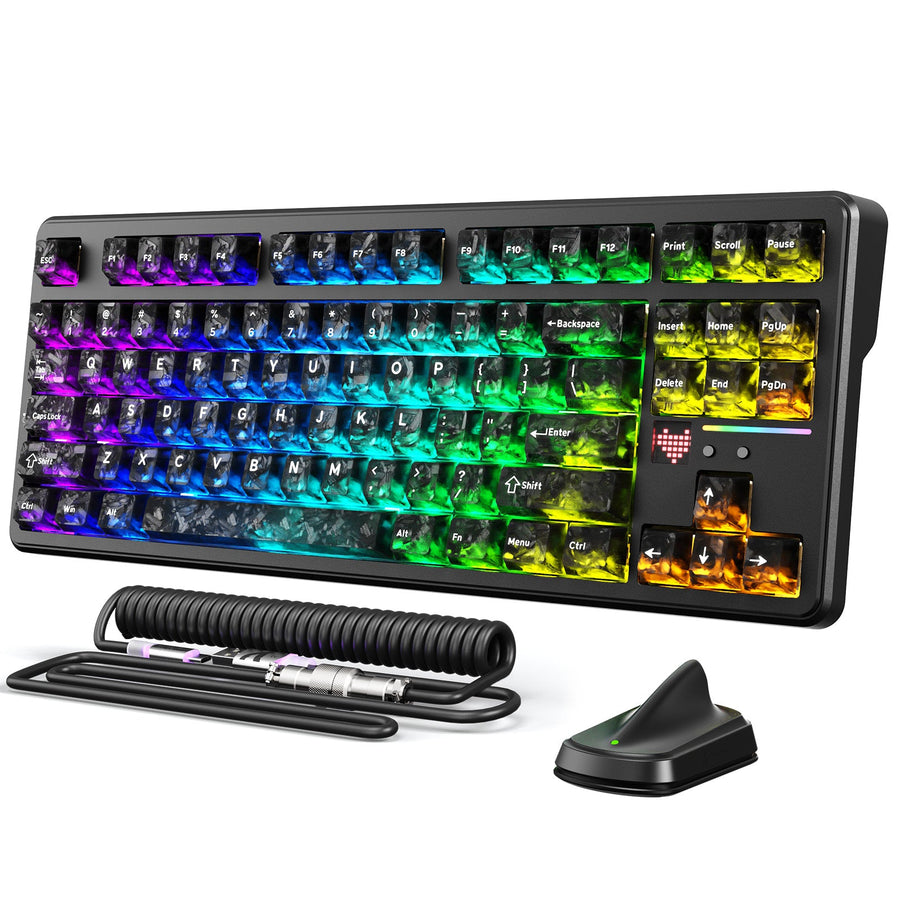
The supplied X66, X820ULTRA, and K86 listings each show 2.4GHz, Bluetooth, and USB-C wired connectivity. That makes them tri-mode candidates, but their feature parity and switching behavior still require exact-model documentation.
Verify Switching, Receiver, Pairing, and OS Support for the Exact Model
Run the exact listing and manual through six checks before buying, and treat any unresolved item as a reason to keep researching rather than guess.
- Both hosts and intended modes: Confirm the keyboard lists the connection you plan for each host, not just "wireless" in general.
- Switching control: Find the exact instructions for choosing a host or mode, whether that's a switch, key combo, or button.
- Receiver and adapter path: Confirm a receiver ships with the keyboard if you need 2.4GHz, and check that the connector fits an available port.
- Bluetooth pairing and stored hosts: Check how many devices the keyboard remembers and whether switching between them requires re-pairing.
- Exact OS and device support: Match the listed operating systems and device types to your actual laptop and desktop, not to a general keyboard category.
- USB-C wired data operation: Confirm the listing names wired keyboard input, not only charging, and explains how to select wired mode.
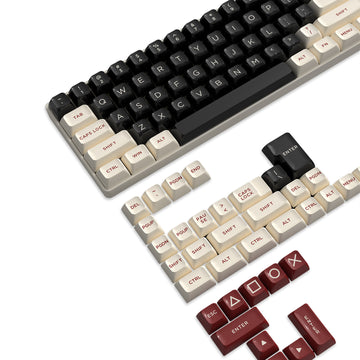
The X66 tri-mode keyboard is a 60% layout with Bluetooth 5.0, 2.4GHz, and USB-C wired connectivity, a hot-swappable design, and an 8K coiled cable listed with the product. It is a documented tri-mode candidate for buyers who want a compact board. The K86 wireless keyboard offers the same three connection types in a 75% layout with 86 keys and a TFT display. That may suit buyers who want more keys than the X66, while its receiver, switching control, pairing behavior, and wired-mode instructions still need confirmation. Buyers who want a larger tri-mode option with a rotary knob can also check the X820ULTRA's exact mode list against their setup.
Before Buying, Turn the Host Map Into a Go-or-No-Go Decision
Write down which host uses which connection and which ports must stay free, then hold the exact listing to that map. Open the product page or manual for the model you are considering and check it against the six items above, in order. If the receiver, switching control, or wired-mode documentation is missing for a requirement you actually need, either choose a different model or wait until that gap is documented rather than assuming it works.
If every required item checks out and the listed modes match your desktop-and-laptop routine, you can move forward with that model as a supported choice. If frequent switching or wired fallback doesn't matter to you, a simpler single-mode keyboard confirmed for one host may serve you better than paying for tri-mode you won't use.
FAQ
Is 2.4GHz Always Lower Latency Than Bluetooth for Gaming?
No single answer applies across every model. Protocol choice alone does not guarantee a latency advantage. If latency is a deciding factor for you, check the exact keyboard's own specifications or independent testing for that model rather than assuming one protocol always wins.
What Should I Check About a Wireless Gaming Keyboard's Battery Life?
No universal battery duration applies across wireless gaming keyboards. Use the exact model's stated figure, if one is provided, and check the backlight and connection conditions attached to it. When no duration is listed, treat battery life as unverified rather than comparing models by connection label. Require wired fallback only if the listing documents USB-C data operation, not just charging.
Can I Switch One Wireless Gaming Keyboard Between a Laptop and Desktop?
Switching can mean changing the wireless mode, selecting a previously paired host within that mode, or doing both. The exact model may instead require pairing again. Check whether its control selects 2.4GHz or Bluetooth, which saved host it selects, and what the manual says about re-pairing before buying if this convenience matters.
Will I Have to Pair the Keyboard Again Every Time I Change Computers?
That depends on the exact model's pairing memory, not on the connection type alone. Do not assume the keyboard remembers both your laptop and desktop automatically. Check the manual for stored-host capacity and switching instructions before buying if this convenience matters to your routine.