
A wireless gaming mouse for laptop and desktop can work well when each computer has a suitable connection. Leave the 2.4GHz receiver connected to the gaming desktop, pair the mouse with the laptop over Bluetooth, and keep wired USB as a fallback if the mouse supports wired use. The key question is whether the mouse's connection options and mode control fit your desk routine.

Can One Wireless Gaming Mouse for Laptop and Desktop Work Well?
Yes. Assign the 2.4GHz receiver to the gaming desktop, Bluetooth to the laptop when both devices support it, and wired USB to fallback use when the mouse supports wired operation.
Before choosing Bluetooth, confirm that the laptop supports it. Microsoft explains that a Windows device needs Bluetooth for pairing, while a USB Bluetooth adapter can add that capability to a Windows computer without built-in Bluetooth. Review the Windows Bluetooth support guidance before making Bluetooth the laptop connection.

| Assigned connection | Preparation | Changeover action | Best fit |
|---|---|---|---|
| 2.4GHz receiver on desktop | Plug the receiver into a suitable USB port on the desktop | Select the mouse's 2.4GHz mode | Frequent desktop gaming with the receiver left in place |
| Bluetooth on laptop | Pair the mouse with a Bluetooth-capable laptop or compatible adapter | Select Bluetooth; pair again only if the product requires it | Laptop work, school, or general use without moving the receiver |
| Wired USB fallback | Confirm that the mouse supports wired operation and keep the cable within reach | Connect the cable and select the listed wired mode | Charging, troubleshooting, or cable-first use when supported |
This setup minimizes receiver movement, but it does not mean the mouse stays actively connected to both computers or automatically remembers both pairings. Receiver storage helps prevent loss when the mouse travels; it does not indicate active two-computer switching. When choosing a setup, consider the mouse's mode control, pairing behavior, connector requirements, and wired operation.
A three-mode specification can support this plan, and the tri-mode connection options provide a relevant shopping path. Match the listed modes and connector requirements with the desktop's available USB port, the laptop's Bluetooth support, and any adapter you need at your desk.
How Do You Set Up and Test the Two-Computer Mouse Workflow?
Set up each connection separately, then test the full desktop-to-laptop changeover at the desk where you will use the mouse. A successful first connection does not show whether the routine will be practical during a normal workday or gaming session.
- Start with the connection instructions. Find the product's directions for 2.4GHz, Bluetooth, wired operation, the mode control, supported host systems, and receiver placement. If the instructions do not explain the changeover or wired behavior, do not build your routine around that feature.
- Connect the desktop receiver. Plug the 2.4GHz receiver into the gaming desktop's intended USB port. Position it as you would during play, then confirm that the mouse responds.
- Pair the laptop over Bluetooth. Put the mouse into its listed discoverable or Bluetooth mode. In Windows, open Bluetooth settings, make the mouse discoverable, and select it when it appears. Follow the mouse's own instructions for any additional steps.
- Locate the mode control. Identify the physical switch, button, or software action that selects the desktop and laptop connections. A PC Gamer review of a dual-wireless mouse found its 2.4GHz/Bluetooth switch difficult to toggle accurately. That model-specific result is a reason to operate the control at your desk before relying on frequent changes.
- Test wired operation only when listed. Connect the cable to the computer that will use the fallback. Check the mouse's response and make sure the cable reaches without pulling across the work area. A charging port alone does not establish the same wired behavior on every mouse.
- Switch in both directions several times. Move from desktop to laptop and back without changing your planned desk arrangement. Note whether you must press a selector, move the receiver, repeat Bluetooth pairing, reconnect a cable, or wait for the correct computer to recognize the mouse.
- Keep the routine ready to repeat. Store the receiver with the desktop and keep the cable within reach if those connections are part of the plan. Run the changeover again after reconnecting or charging so it reflects normal use. If it takes more effort than you will tolerate, use a simpler connection or keep a second mouse.
This test puts the switching process in the context that matters: your actual desk routine. A mouse response test can help check button response after setup, but it does not determine Bluetooth support or the convenience of the mode control.
Is a Tri-Mode Mouse Worth It for This Two-Computer Setup?
A tri-mode mouse is worth considering when you switch often, can leave the receiver on the desktop, can pair the laptop through a supported Bluetooth path, and can use the product's mode control without disrupting your routine. If one of those conditions does not fit, a simpler wireless setup or wired routine may create less friction.
Independent testing of a tri-mode mouse shows why implementation details matter: one model combined wired, RF, and Bluetooth connections and used a physical selector, with wired operation available in its tested configuration. Treat those wired, RF, and Bluetooth modes as examples of details that vary by product.
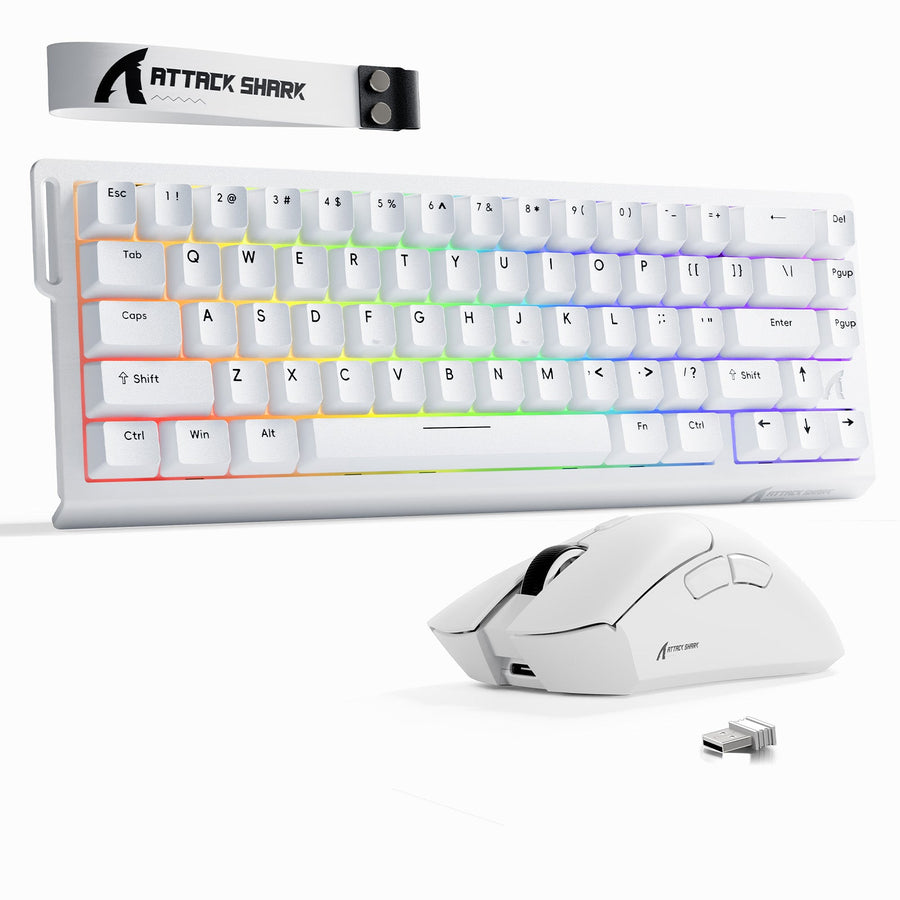
The ATTACK SHARK V5 offers wired, Bluetooth, and 2.4GHz wireless connections. Those options make it a relevant example for this two-computer plan, while the mode control, pairing behavior, operating-system support, and wired routine still need to fit your desk. Review the ATTACK SHARK V5 tri-mode details before buying.
A wireless gaming mouse for laptop and desktop is the right fit when frequent alternation makes a selectable second connection more useful than maintaining separate mice. Choose a simpler single-mode wireless mouse when one computer is the real home base and occasional reconnection or receiver movement is acceptable. Choose wired when cable-first use is acceptable and you want to avoid wireless pairing, receiver management, and mode selection.
Use the listed modes, Bluetooth host requirements, receiver arrangement, pairing behavior, mode control, USB connector needs, operating-system support, and wired operation to make the final choice. Write down the desktop connection, laptop connection, fallback connection, and physical changeover action. If the product information does not show how that changeover works, choose the simpler documented setup or keep a wired fallback.
Frequently Asked Questions
These answers cover the connection and switching details that most affect a laptop-and-desktop setup.
Can one wireless gaming mouse connect to both a laptop and a desktop?
Yes, when the assigned receiver, Bluetooth, or wired connections match the two computers and the mouse supports the required modes. The receiver can stay on the desktop while Bluetooth serves the laptop, with wired USB available when the mouse supports it.
How do I switch a tri-mode mouse between a laptop and PC?
Leave the receiver on the desktop, pair Bluetooth with the laptop, and use the mouse's listed mode control to select the connection you need. The control may be a button, selector, software action, or reconnection step, so operate it in both directions before making it part of your daily routine.
Is Bluetooth suitable for work and gaming on the same mouse?
Bluetooth can suit laptop work when the laptop and mouse support the required connection. For gaming, compare the mouse's connection options with your activity and desk routine, then test the laptop path before relying on it regularly.
What should I check before buying a wireless gaming mouse for a laptop and desktop?
Check the listed 2.4GHz receiver, Bluetooth, and wired modes; supported host devices; mode-selection control; receiver arrangement; pairing behavior; USB connector requirements; and wired operation. If the changeover you need is not explained, choose a simpler setup or retain a wired fallback.